TMS LLM Task
Simulation Description
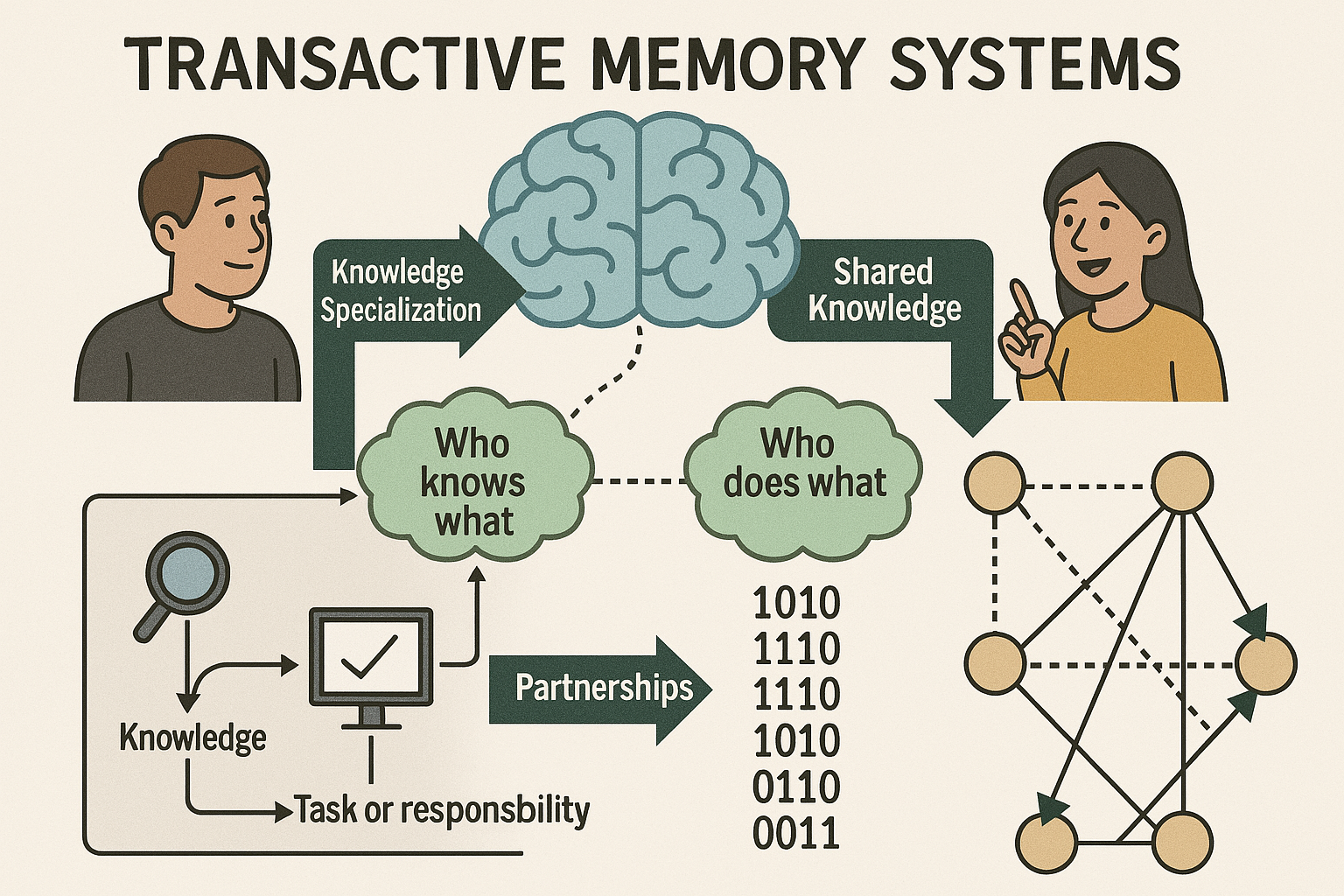
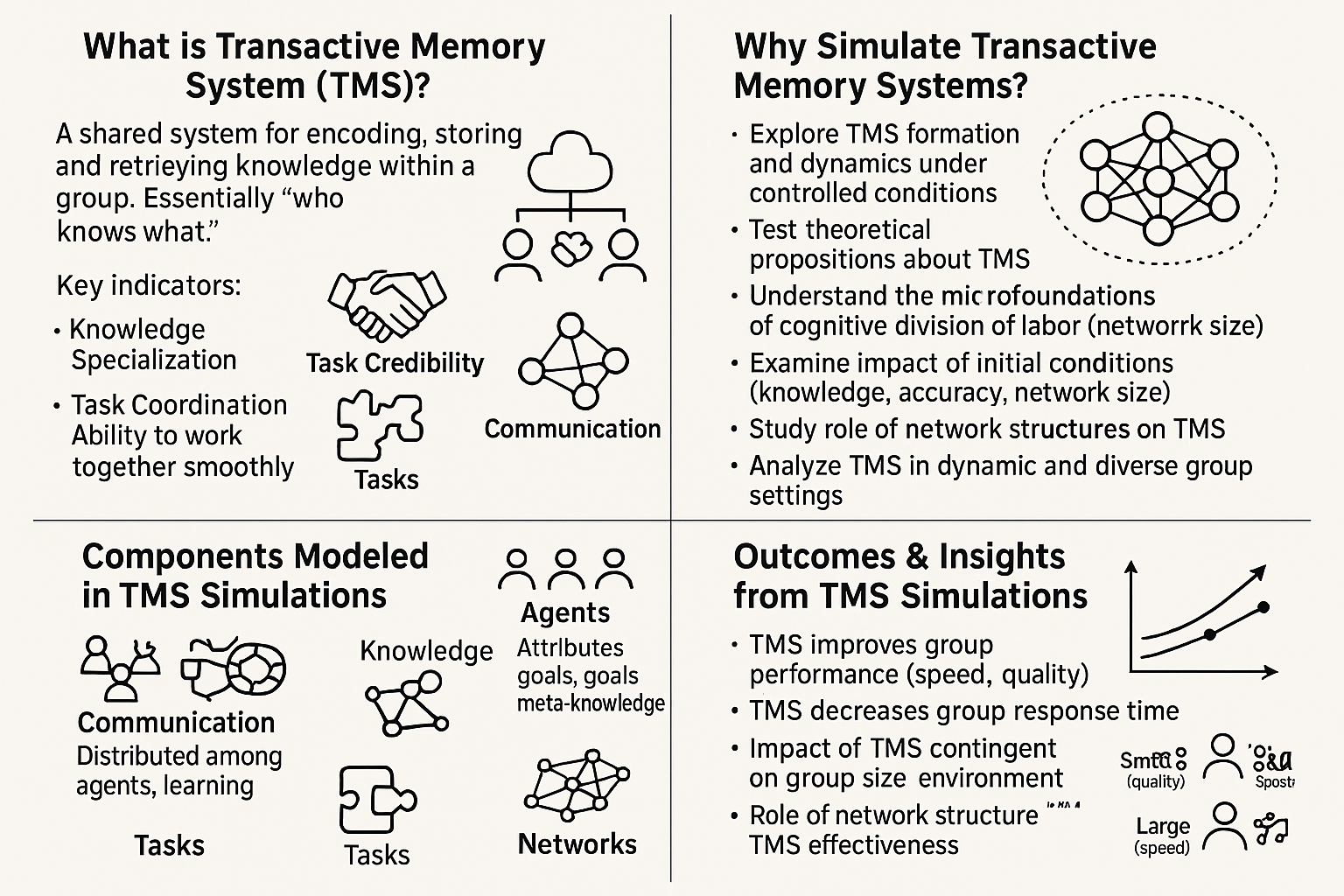
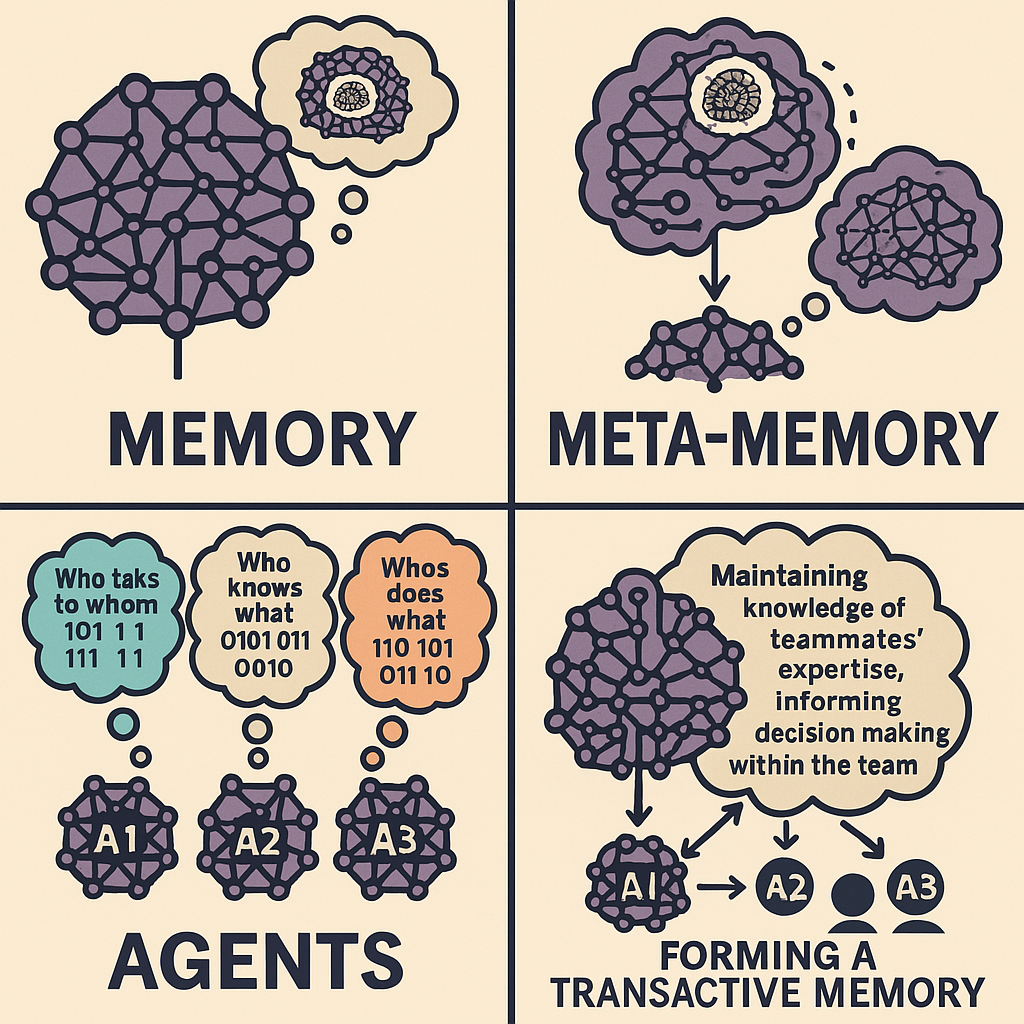
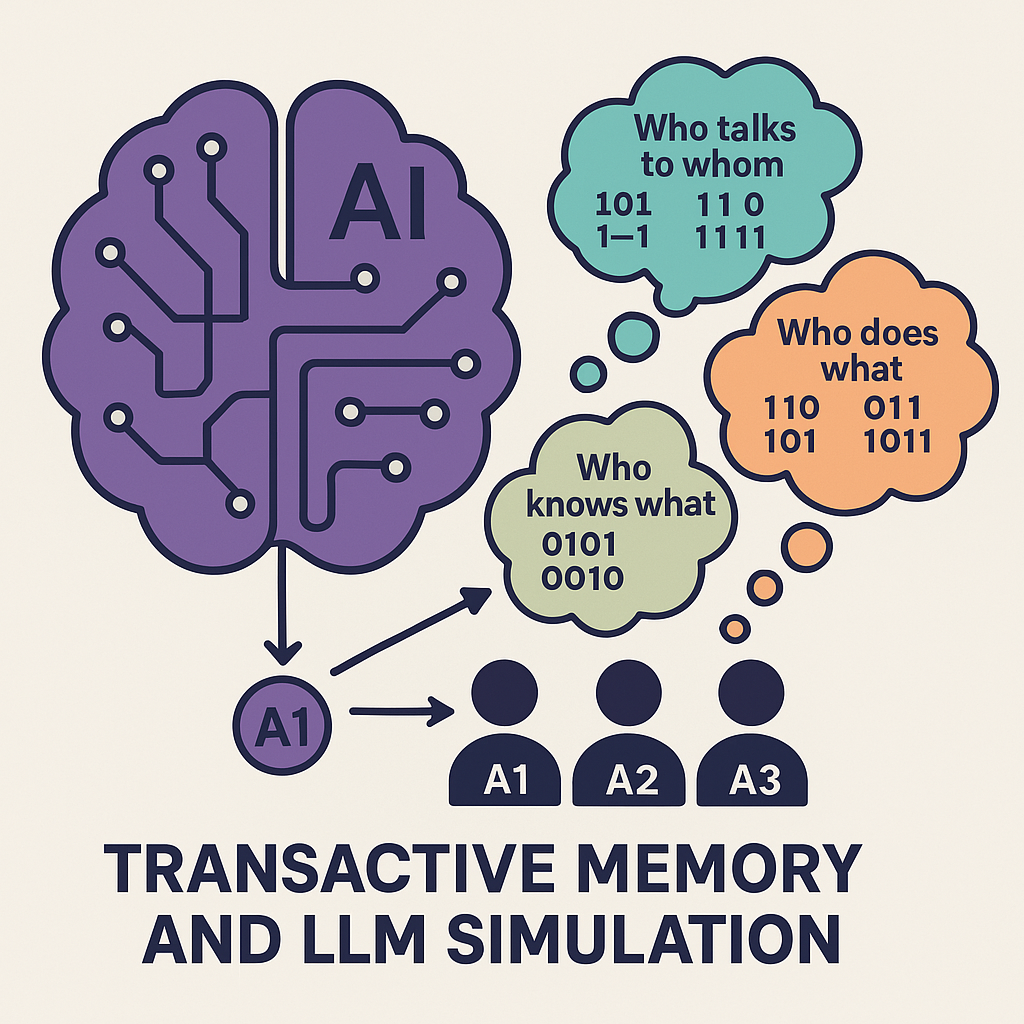
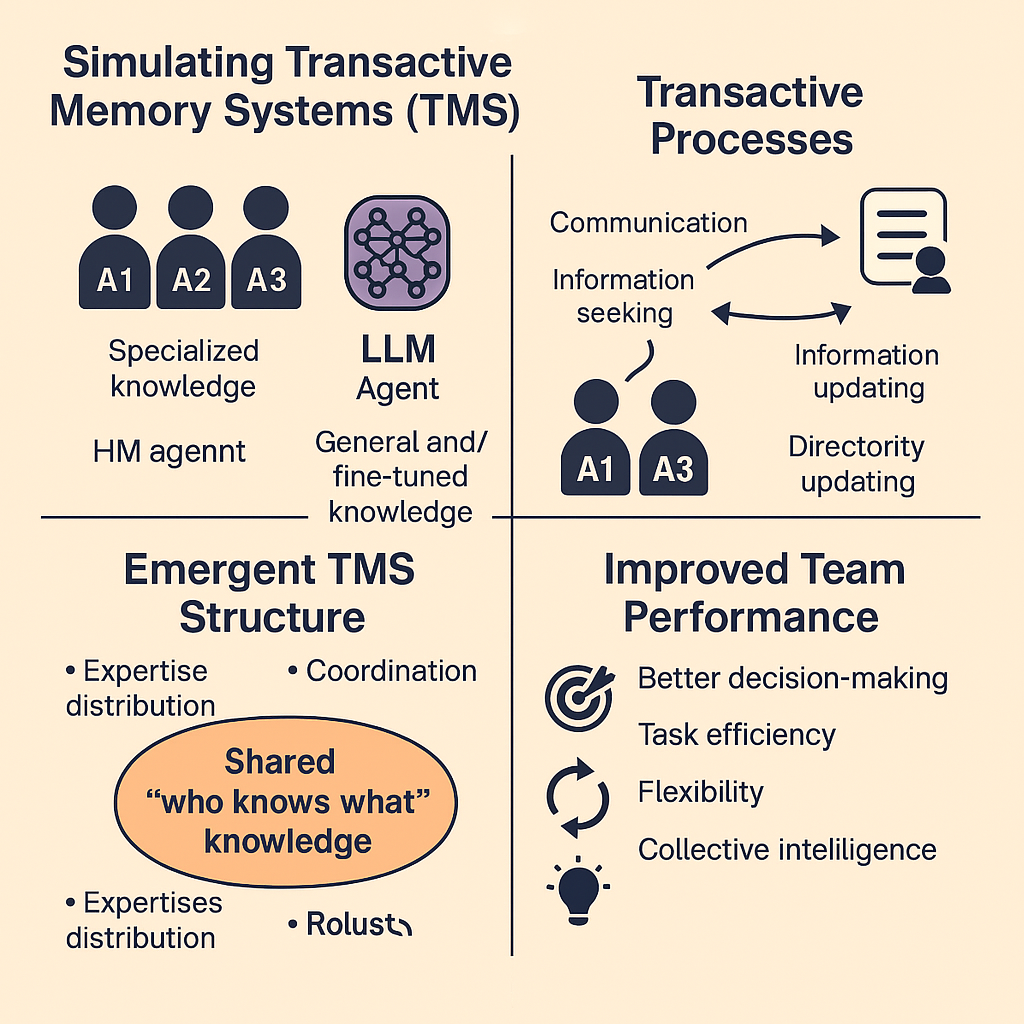
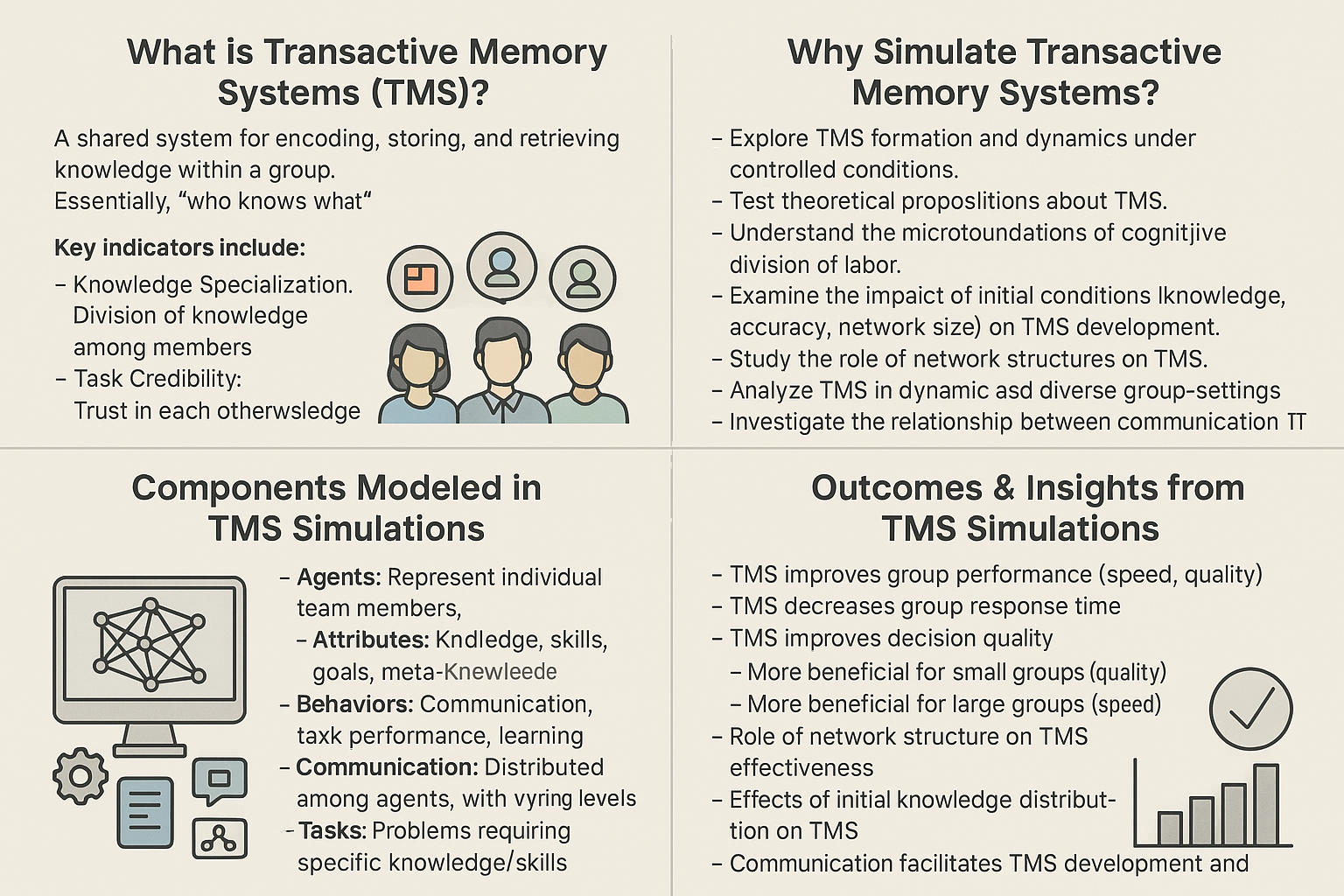
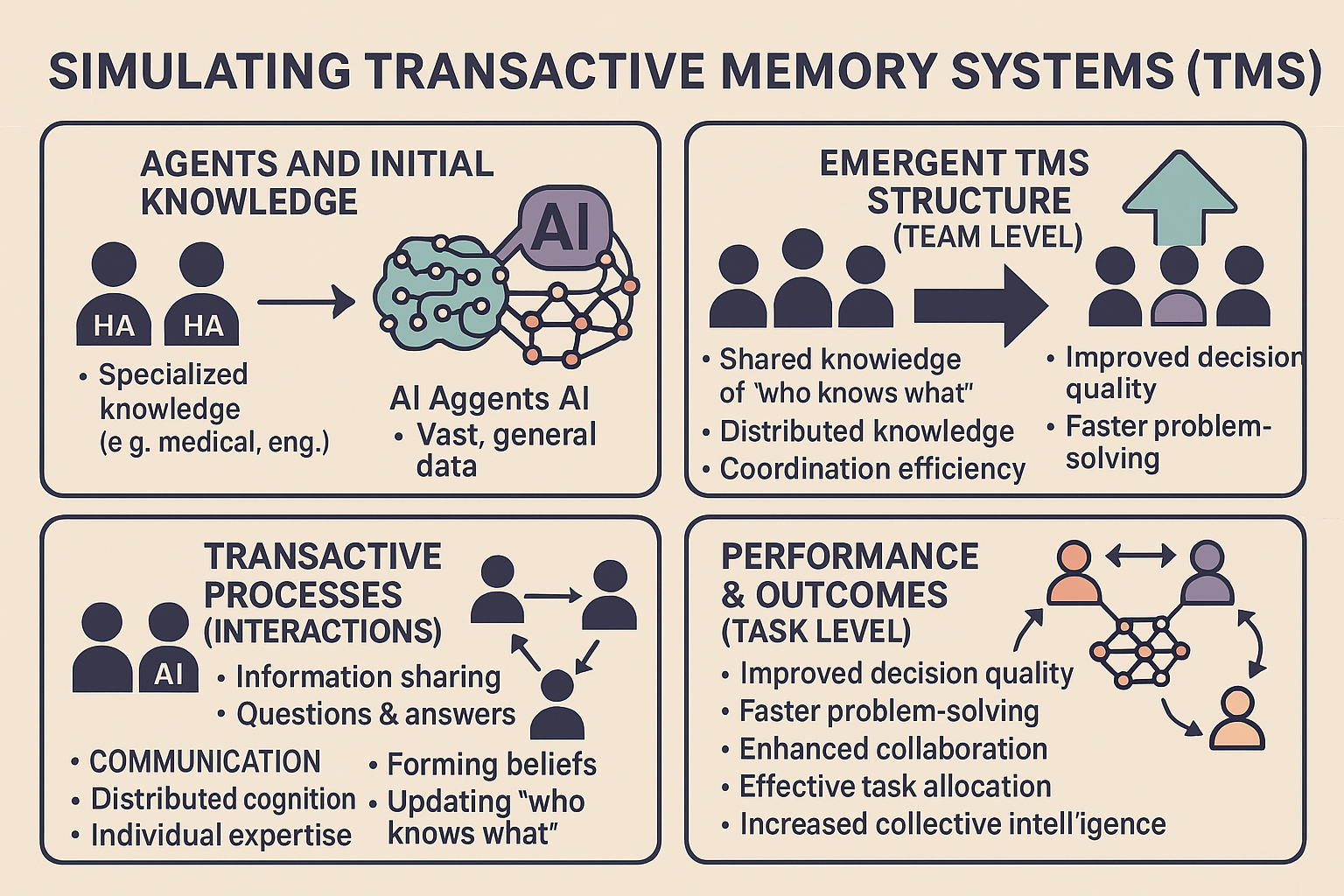
This web application simulates a basic Transactive Memory System (TMS) within a small team of three agents. TMS refers to the shared understanding within a group about who knows what, who is good at what, and how to access that expertise. This simulation uses Large Language Models (LLMs) via an API to act as the agents, making decisions about task allocation based on their perceived knowledge of their own skills and the skills of their teammates.
To begin, enter the key (might be auto-entered) and click “Save” to set up the API connection. Then, configure the simulation settings (Agent Mode, Organizational Prompt, Total Rounds, Prompt History) and run the simulation to observe how different settings impact the team’s performance. You can save and compare multiple simulation runs to analyze the effects of various configurations on the team’s success in completing tasks. Press “Run next step” to proceed through the simulation one round at a time or “Run full simulation” to complete all rounds at once.
TMS-LLM Simulation - Try it out!
enter key below: sk-4597455063b242e9a43187a32115c04a
- Then press save key to start the simulation demo
- Press the Run full simulation button to see the simulation in action
- Run simulations, track team scores, and visualize performance using charts.
- Compare different settings to see which factors best help the AI team develop an effective TMS
TMS-LLM Simulation Background & Instructions
What This Simulation Demonstrates
This web page provides a simplified, interactive simulation exploring how a TMS might emerge and function within a small team. It uses AI agents (powered by a Large Language Model like Llama 3.2 via an API) to represent team members.
The Core Idea:
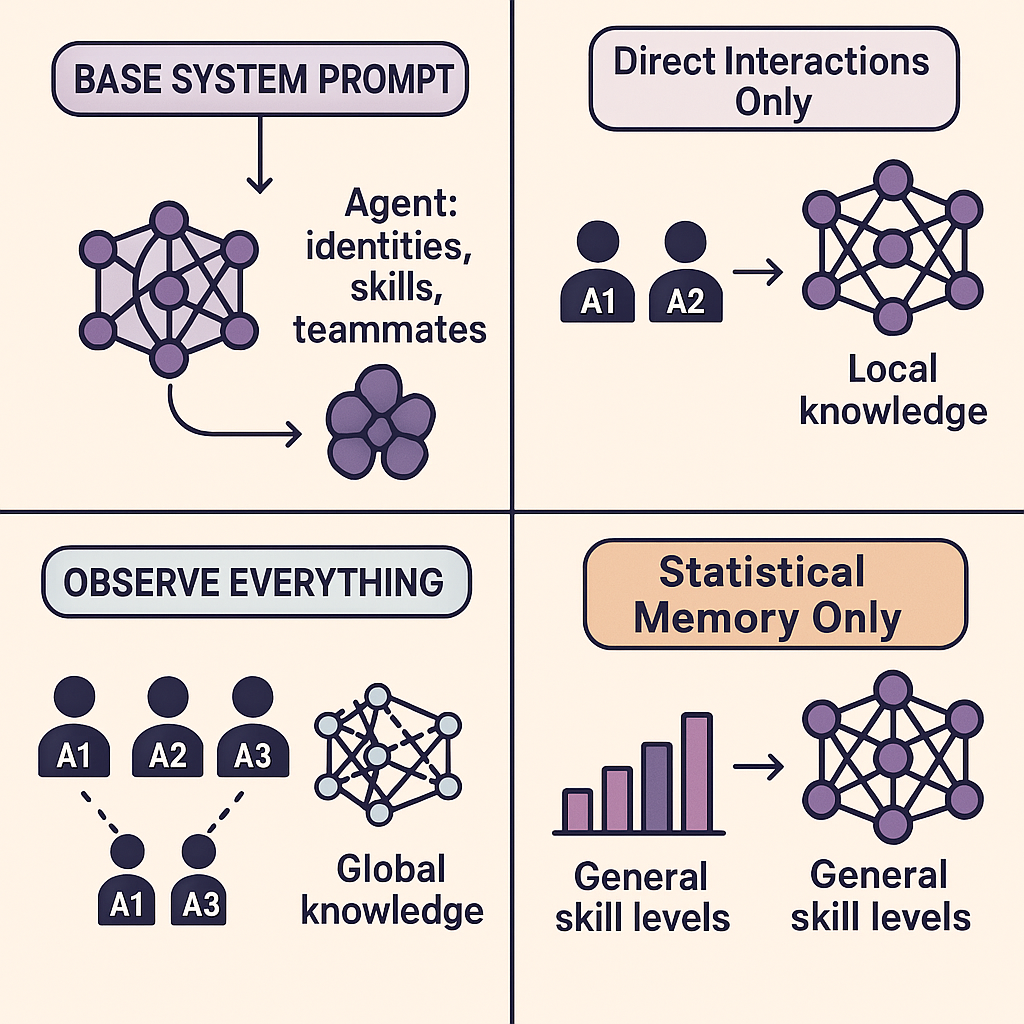
- The Team: Three simulated “Agents” (Agent 1, Agent 2, Agent 3). Each has predefined, hidden skill levels (Good or Poor) in three domains: Math, Writing, and Logic. For instance, Agent 1 might be Good at Math but Poor at Writing and Logic.
- The Tasks: In each “round,” every agent is assigned one task type (Math, Writing, or Logic).
- The Decision: This is the heart of the TMS simulation. Based on the information available to it (controlled by settings like “Agent Mode” and “Prompt History”), each agent (the LLM) decides whether to:
- Perform the task itself (“Self”).
- Delegate the task to another agent it believes is better suited (“Agent X”).
- Learning (Implicitly): Agents don’t have explicit memory structures that get updated like a database. Instead, they “learn” by observing the outcomes of past tasks. A summary of relevant past rounds (the “history”) is included in the prompt sent to the LLM for its next decision. This history influences its future choices. The amount and type of history observed depend on the Agent Mode setting.
- Success/Failure Simulation: After the decision, the simulation determines the outcome based on the actual skill level of the agent who ended up performing the task.
- Good Skill: 90% chance of success.
- Poor Skill: 10% chance of success.
- The outcome (Success/Failure) is determined randomly based on these probabilities.
- Team Scoring: The team earns points (+3) for a round only if all three tasks assigned in that round are completed successfully. This incentivizes effective delegation across the entire team.
- Experimentation & Comparison: You can run multiple simulations using different settings (e.g., how agents observe history, what general instructions they receive). By saving and comparing the results using charts and data tables, you can explore which conditions foster a more effective TMS, leading to better scores and more accurate task assignments.
Essentially, this demo is a sandbox for observing how communication patterns (Agent Mode) and high-level guidance (Organizational Prompts) impact the ability of AI agents to develop and utilize a TMS to leverage their collective expertise.
Running a Simulation: Basic Workflow
- Setup (API Key): Enter your Purdue API key in the “API Key Setup” section and click “Save”. This is essential for the simulation to communicate with the AI model. The main simulation area will appear after saving.
- Configure Settings: Before starting, adjust the simulation parameters:
- Agent Mode: Controls how much task history agents observe (
Direct Interactions Onlyvs.Observe Everything). - Organizational Prompt: Selects high-level guidance given to agents (e.g.,
Baseline,Focus on Best History,Encourage Delegation,Self-Reliant Bias). - Total Rounds: Sets the number of rounds for the simulation (e.g., 15).
- Prompt History: Determines how many past rounds are included in the context given to the AI for decision-making (0 means no history).
- (Optional) Customize Agent Prompts: Click the button to modify the underlying base instructions for each agent for more fine-grained control (requires Reset Run to apply).
- Agent Mode: Controls how much task history agents observe (
- Run the Simulation:
- Click Run next step to execute one round at a time.
- Click Run full simulation to automatically run all remaining rounds. Use Stop Auto Run to halt mid-way.
- Observe Results:
- The Results Area displays the detailed outcome of each round for the current run (who was assigned what, who performed it, success/failure, optimality).
- The Charts (Cumulative Score, Correct Assignment Rate) update automatically, showing the current run’s performance (in black) alongside any selected saved runs.
- Inspect & Debug (Optional):
- Click the A1, A2, A3 buttons under “Inspect” to see what an agent has observed (based on Agent Mode) and its detailed AI interaction history (prompts & responses) for the current run.
- Save & Compare:
- Once a simulation completes, click Save Simulation Results to store its settings and outcomes.
- In the Compare Stored Runs section, check the boxes next to saved runs to compare their performance on the charts and in the Agent Choice Matrices.
- Use View Log to examine the detailed configuration and results of a specific saved run. Manage the list using Select All, Deselect All, Delete Selected.
- Reset: Click Reset Current Run to clear the current simulation’s progress and results (saved runs remain). This allows you to change settings and start a new run.
Understanding the Interface (Key Components)
Settings
- Agent Mode:
Direct Interactions Only: Agents only remember outcomes of tasks they were assigned or performed. Simulates limited information sharing.Observe Everything: Agents see the outcome of all tasks in the relevant history. Simulates full transparency.
- Organizational Prompt: Provides different high-level strategies added to the AI’s instructions:
Baseline: Generic guidance.Focus on Best History: Prioritize delegation based on past success.Encourage Delegation: Nudge towards delegation if others seem better.Self-Reliant Bias: Nudge towards performing tasks oneself.
- Total Rounds / Prompt History: Control simulation length and the amount of past context influencing decisions.
- Customize Agent Prompts: Allows advanced users to edit the base system prompt for each agent (takes effect after Reset).
Simulation Control
- Status/Score Display: Shows the simulation’s current state and the team’s cumulative score for the ongoing run.
- Inspect Buttons (A1, A2, A3): Opens a pop-up showing the selected agent’s observed history and AI interactions (for the current run).
- Run/Stop/Reset Buttons: Control the execution flow (step-by-step, full auto-run, stopping, clearing the current run).
- Save Simulation Results: (Enabled when complete) Stores the current run’s configuration and results for later comparison.
Results Area
- Displays a log of the current simulation’s progress, round by round. Each entry shows:
- Who was assigned which task.
- The agent’s decision (Self or Delegate Agent X). May indicate if corrected/forced.
- The simulated outcome (Success/Failure).
- Whether the task was performed by the agent with the best actual skill (
[Optimal Solver]or[Suboptimal Solver (Best: Agent Y)]).
Comparison Area
- Compare Stored Runs: Lists simulations you’ve saved.
- Checkboxes: Select runs to display on the charts and matrices.
- Color Box: Indicates the color used for that run in the charts.
- Label: Summarizes the run’s key settings and final score.
- View Log: Opens a detailed pop-up for the saved run (settings, prompts, full results).
- Delete: Removes a single saved run.
- Action Buttons (Select All, etc.): Manage the selection and deletion of multiple saved runs.
Charts
- Cumulative Score Chart: Tracks the total team score over rounds for the current run (black) and selected saved runs.
- Correct Assignment Rate Chart: Shows the percentage of tasks per round performed by the optimally skilled agent, comparing runs. Helps visualize if the team is learning to delegate effectively.
Agent Choice Matrices
- Provides a breakdown of individual agent decision patterns, aggregated across selected saved runs (and the current run if active).
- For each agent, a table shows:
- Rows: The task type the agent was assigned (Math, Writing, Logic).
- Columns: The agent chosen to perform the task (Agent 1, Agent 2, Agent 3 - “Self” maps to the deciding agent’s ID).
- Cells: The percentage (%) of time that agent made that specific choice for that assigned task.
- Green Highlight: Indicates the cell corresponding to the theoretically optimal agent for that task, helping to see if agents are learning correct delegation patterns.
Key Pop-ups (Modals)
- Inspect Agent: Opened via A1/A2/A3 buttons. Shows the agent’s ground-truth skills, its observed task history (based on Agent Mode), and allows viewing the detailed LLM interaction history (prompts sent, raw AI response) for debugging decisions in the current run.
- Customize Agent Prompts: Opened via the “Customize…” button in Settings. Allows editing the base system prompt text for each agent (requires Reset Run to apply changes).
- Detailed Simulation Log: Opened via the “View Log” button next to a saved run. Provides a comprehensive view of a completed, saved simulation, including:
- Overview Tab: Settings used, final score, average performance metrics.
- System Prompts Tab: The exact system prompts used for each agent during that run.
- Result Logs Tab: The full round-by-round results for that saved run.
This simulation provides a visual and interactive way to explore the dynamics of team knowledge sharing and task delegation, offering insights into how different factors can influence the development of an effective Transactive Memory System.
Old version of task
Open task in separate window (optional - provides more space)